
— Terminal Scrollback Markers —
The perfect bash script doesn’t exi- 🖐
The perfect bash script doesn’t exi- 🖐
Problem
Yesterday, I was running a test suite that generated way more logs on the terminal. The problem was when doing consecutive runs, it was really hard to find where one invocation ended and the next one started.
When searching through the scrollback history for errors or warnings (e.g., Allacritty Terminal Scrollback search, Zellij Multiplexer Scrollback search), this problem is multiplied. Because now you’re presented with all the errors of all of your runs. Not just the last run.
The obvious solution is just to close the current terminal and open a new one or to clear the scrollback buffer. (mind you, the regular clear command just clears the current screen. If you scroll up, you will see that your history is intact). But the first solution is very cumbersome and slow, especially when doing multiple invocations of a command. And both of these solutions are destructive. You will have to discard your precious history that you could have referred back to if you didn’t clear it.
Solution
The solution (at least what I came up with) for this problem was this very cute and very useful marker for your terminal.
Markers
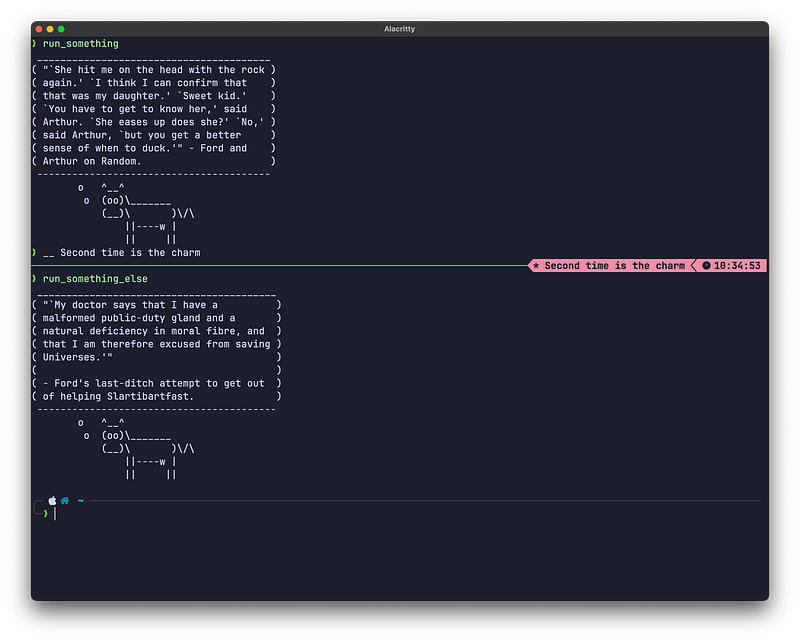
When you tap __ and <enter>, it will create a simple red line across the terminal window with the current time
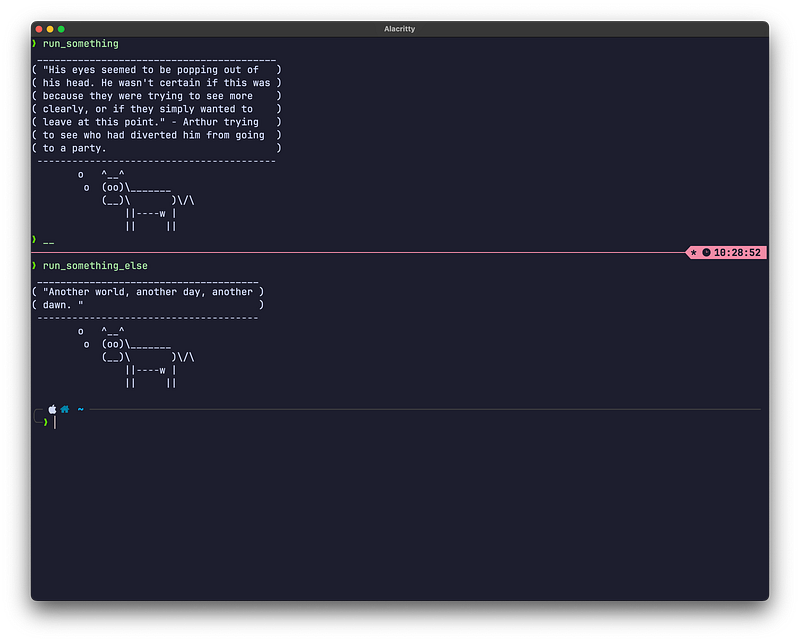
Notice that * before the time? remember that. It’s very important.
Named Markers
You can also name your markers simply by following up __ with any name or number
Navigations
The above screenshots do this tool very little justice, but if you have been working on the terminal long enough, you know what a nightmare it is to search through something in your output history. With these very noticeable markers, you can easily find the exact locations you need to notice when you scroll up in your history.
See the simple * and a <space> before every marker? If you’re using scrollback search, you can search for this pattern ( * ), which will help you to quickly jump between the markers in your history. Additionally, if you’re using Named Markers, you can use the marker name to jump to the exact marker you want.
Enough teasing. What does this _ _ look like?
Ok, here it is. It’s just a simple 4 liner.
__ () {
label="$*"
marker=`[ -z $label ] && echo "*" || echo "* $label "`
timer=" $(date +%H:%M:%S)"
printf '\e[1;31m%s\e[1;7m%s\n\e[m' ${(l:COLUMNS-3-${#timer}-${#marker}::─:)} "$marker $timer "
}just copy this to your .bashrc or .zshrc, and you’re good to go. The above script uses NerdFonts to show you those beautiful icons.
If, for whatever reason you cannot use NerdFonts in your terminal, the following is an alternate version using Unicode characters. It’s a bit ugly but still very usable.
# Unicode version
__ () {
 label="$*"
 marker=`[ -z $label ] && echo "*" || echo "* $label ╱"`
 timer="◔ $(date +%H:%M:%S)"
 printf '\e[1;31m%s◀\e[1;7m%s\n\e[m' ${(l:COLUMNS-4-${#timer}-${#marker}::─:)} " $marker $timer "
}
If you only can use ASCII in your terminal, this is a much uglier but again still usable alternative.
# ASCII version
__ () {
 label="$*"
 marker=`[ -z $label ] && echo "*" || echo "* $label |"`
 timer="@ $(date +%H:%M:%S)"
 printf '\e[1;31m%s\e[1;7m%s\n\e[m' ${(l:COLUMNS-3-${#timer}-${#marker}::-:)} " $marker $timer "
}